












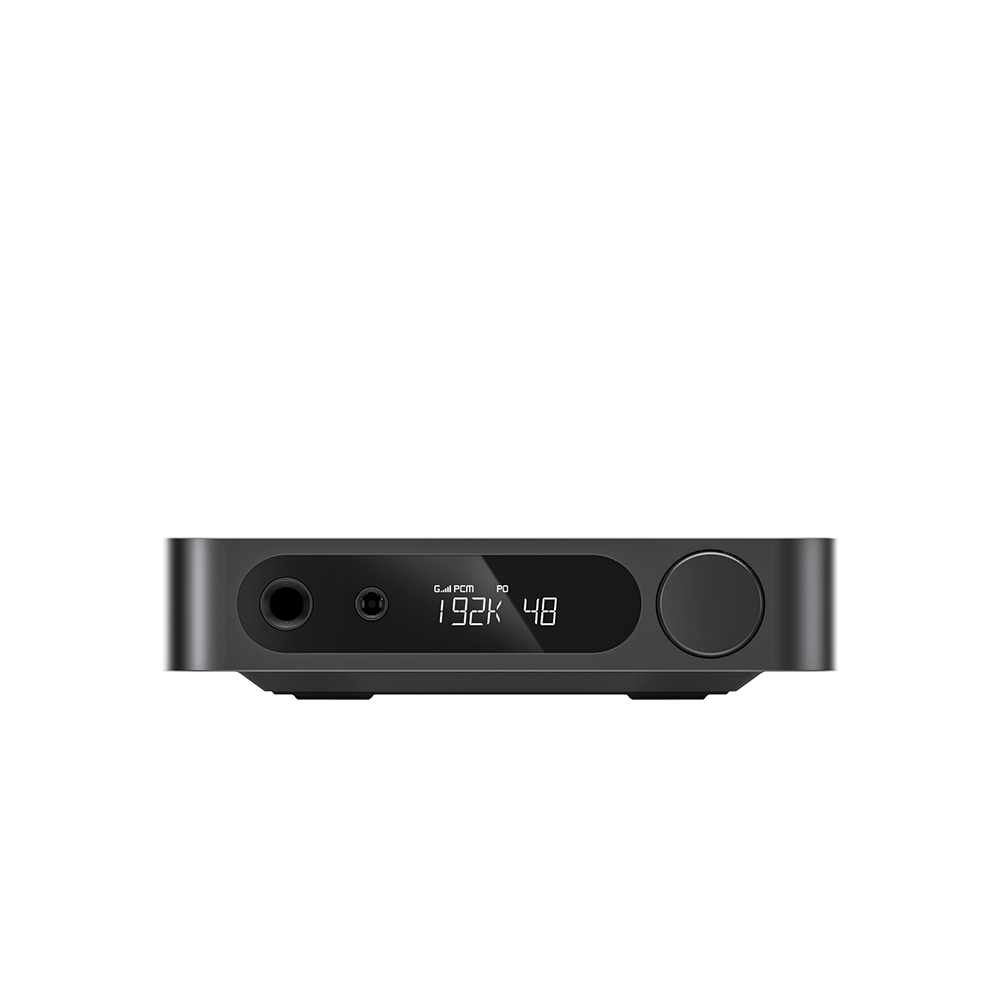

















4. Menu settings instruction for BR15 R2R
Power On/Off
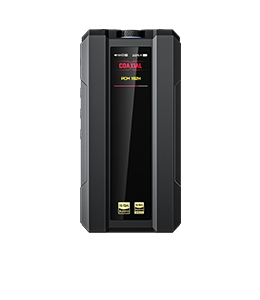
The BR15 supports both AC and DC power supply.
AC Power supply: To use AC power, connect the AC power cable and turn on the AC power switch.
DC Power supply: To use DC power, simply connect a DC power source to power on the device. Ensure the DC power source has an output voltage of 5V and a current of ≥2A. The DC plug connector specification is 5.5×2.1mm.
When the BR15 is powered on, you can press and hold the power button or use the infrared remote control to turn it off.
When the BR15 is powered off, you can press the power button briefly or use the infrared remote control to turn it on.
Knob Operations
1.Switch Working Modes
On the main interface, rotating the Menu Knob will enter the working mode menu. By rotating the knob, you can cycle through the four available working modes: USB, Optical, Coaxial, and Bluetooth.
To select a mode, rotate to the desired mode and press the knob briefly. The device will switch to that mode and return to the main interface.
If you do not wish to change the mode, press and hold the knob to return to the main interface without making a selection.
2.Settings Menu
When on the main interface after powering on:
Press the Menu Knob briefly to enter the settings menu.
Rotate the knob to navigate through different settings items.
To modify a setting, press the knob briefly while highlighting the desired item. This will enter the selection page for that setting.
On the selection page, rotate the knob to switch between different options, then press the knob briefly to confirm. The system will automatically return to the settings menu page, and the new setting will take effect.
On a setting selection page, press and hold the knob for about 2 seconds to return to the main settings menu.On the main settings menu interface, press and hold the knob for about 2 seconds to return to the main device interface.
3.Adjust Volume
Rotating the Volume Knob directly increases or decreases the volume.
Pressing the Volume Knob briefly mutes the audio. Pressing it again briefly or rotating the knob will unmute the audio.
From any interface, rotating the Volume Knob will cause the system to temporarily switch to a large volume icon interface, displaying the current volume level.
4.Introduction to Settings menu
|
Settings menu |
Introduction |
|
EQ |
The equalizer can be switched to the following settings: Off or other equalizer effects: BYPASS, Jazz, Pop, Rock, Dance, R&B, Classical, Hip-Hop, Retro, De-essing 1-2, and 10 user Equalizer. |
|
OS: Oversampling settings |
OFF: Oversampling is disabled. 96K: Both PCM and DSD signals will be output at a 96kHz sampling rate. 192K: Both PCM and DSD signals will be output at a 192kHz sampling rate (default is 192K). 384K: Both PCM and DSD signals will be output at a 384kHz sampling rate. If there is no sound output via optical or coaxial connections, try lowering this parameter for better compatibility. |
|
DSD decoding |
D2P: When playing DSD, DSD is SRC to PCM format 1Bit: When playing DSD, DSD is native decoding |
|
Max volume |
Limit the maximum output volume, allowing adjustment of the maximum volume level to 100 steps, with a minimum of 20. Each adjustment changes the volume by ±10 steps. |
|
Balance |
Adjust the balance between the left and right channels.This setting is only effective for RCA/XLR outputs and is invalid for digital outputs. |
|
USB mode |
UAC 2.0: supported higher sampling rate UAC 1.0 : better compatibility |
|
Brightness |
Display brightness adjustment, 1~3 levels adjustable |
|
Display sleep |
15s/30s/1min/2min/5min/10min/30 min/ON adjustable |
|
Auto off |
OFF/30min/1h/2h/3h/5h Selecting OFF cancels the scheduled shutdown function, selecting other option to activates the scheduled shutdown. |
|
Theme |
Theme 1: White text with black background style Theme 2: Orange text with black background style Theme 3: Blue text with black background style |
|
Menu knob |
Default: Rotating the menu knob clockwise scrolls the cursor downwards, while rotating it counterclockwise scrolls the cursor upwards. Reverse: Rotating the menu knob clockwise scrolls the cursor upwards, while rotating it counterclockwise scrolls the cursor downwards. |
|
Knob light color |
Follow Audio / Red / Blue / Green / Cyan / Purple / Yellow / White / Cycle Follow Audio: The indicator light color changes according to the currently playing audio source. In USB/Optical/Coaxial mode, the color corresponds to the audio sampling format: PCM 44.1kHz / 48kHz: Cyan PCM 88.2kHz and above: Yellow DSD: Green MQA: Magenta (Purple) In Bluetooth mode, the color corresponds to the active Bluetooth audio codec: AAC: Cyan SBC: Blue aptX: Purple aptX Adaptive: Green aptX Lossless: Red aptX HD: Yellow LC3: Blue LDAC: White Cycle: The indicator light color cycles gradually through the sequence: Red → Blue → Green → Cyan → Purple → Yellow → White. |
|
Knob light brightness |
1/2/3/4/5 The brightness can be adjusted across 5 levels, with the default brightness level set to 3. |
|
Knob light status |
ON: The indicator light remains constantly illuminated. Pulsing: The brightness of the indicator light gradually decreases until it turns off, then gradually increases to maximum brightness, and then decreases again... This brightness change cycle repeats continuously. Note: In Pulsing mode, the indicator light is not affected by the brightness level settings. OFF: The indicator light is turned off. This setting has the highest priority; all other indicator light brightness and mode settings become ineffective. |
|
Language |
简体中文: The menu settings interface, working modes, pop-up reminders, and other content are displayed in Chinese. English: The menu settings interface, working modes, pop-up reminders, and other content are displayed in English. 日本語: The menu settings interface, working modes, pop-up reminders, and other content are displayed in Japanese. |
|
Bluetooth pairing (Only visible in Bluetooth input mode ) |
Yes: After a short press to confirm, Bluetooth will forcibly enter pairing mode, allowing a mobile phone to normally search for and connect to the Bluetooth device. No: No action is taken, and the display returns to the previous level interface. Note: This setting item is only displayed when the main unit is in Bluetooth working mode; it remains invisible under other working modes. |
|
Factory reset |
No: No action is taken, and the display returns to the previous level interface. Yes: All parameters are restored to factory default settings; after the device restarts, the language selection interface will appear. |
|
Firmware update |
No: No action is taken, and the display returns to the previous level interface. Yes: The system will enter a pop-up interface waiting for an update, allowing connection to the front-panel USB port for MCU firmware upgrade. |
|
About BR15 R2R |
MCU Firmware, Bluetooth Firmware, FPGA Firmware Version Display CMIIT ID: 25J446286838 |
|
Return |
Return to main interface |
OS: Oversampling Mode
The default setting is 192K. When this mode is enabled, external audio data entering the BR15 undergoes oversampling (upsampling) processing internally. This process converts the data to a 192kHz sampling rate before sending it to the R2R module for decoding. The primary purpose of oversampling is to alter the distribution of quantization noise, thereby improving the Signal-to-Noise Ratio (SNR) and potentially enhancing audio detail and clarity.
The oversampling setting offers three selectable sampling rates: 96K, 192K, and 384K. When any of these rates is selected, the setting takes effect simultaneously across all output interfaces: Single-ended (RCA), Balanced (XLR3), and Digital (Coaxial/Optical).
When setting to OFF, the oversampling mode is disabled. Audio data will be decoded at its original native sampling rate without any upsampling, aiming to present the sound in its most authentic, unaltered form.
DSD: DSD Decoding Mode
The default setting is D2P (DSD to PCM). When playing DSD format tracks in this mode, the device internally uses an SRC (Sample Rate Conversion) method to convert the DSD signal into a PCM format before passing it to the R2R module for decoding.
When set to 1BIT, the device decodes DSD format tracks directly via native DSD processing, bypassing the SRC conversion to PCM. This is often referred to as "hardware DSD decoding" or "native DSD".
Important Note: When the DSD mode is set to 1BIT, the SAM:OS (Oversampling) setting in the system menu becomes inactive. The software backend will automatically switch to using an NOS (Non-Oversampling) method for decoding PCM audio streams.
How to Set the Language for BR15 R2R?
