




























ECHO NANO FAQ and quick start guide
1.The Quick Start Guide and FAQ of ECHO NANO
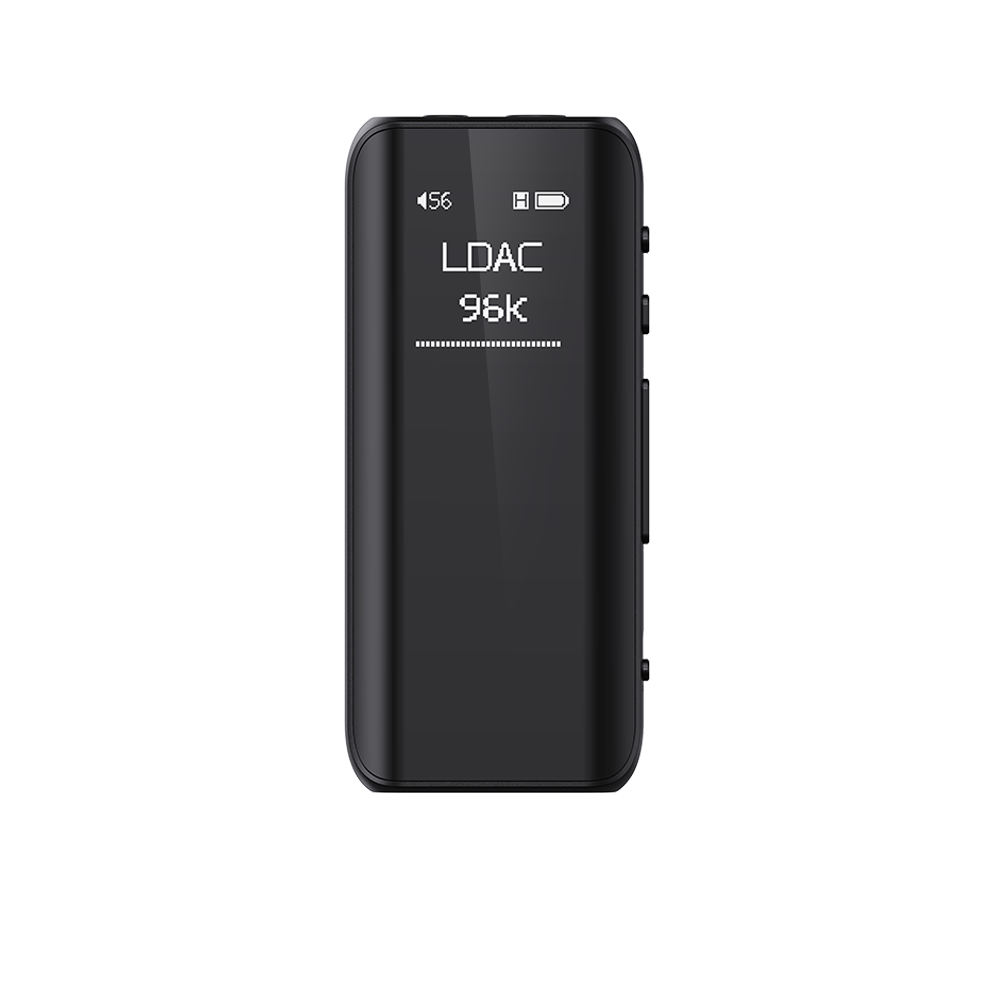
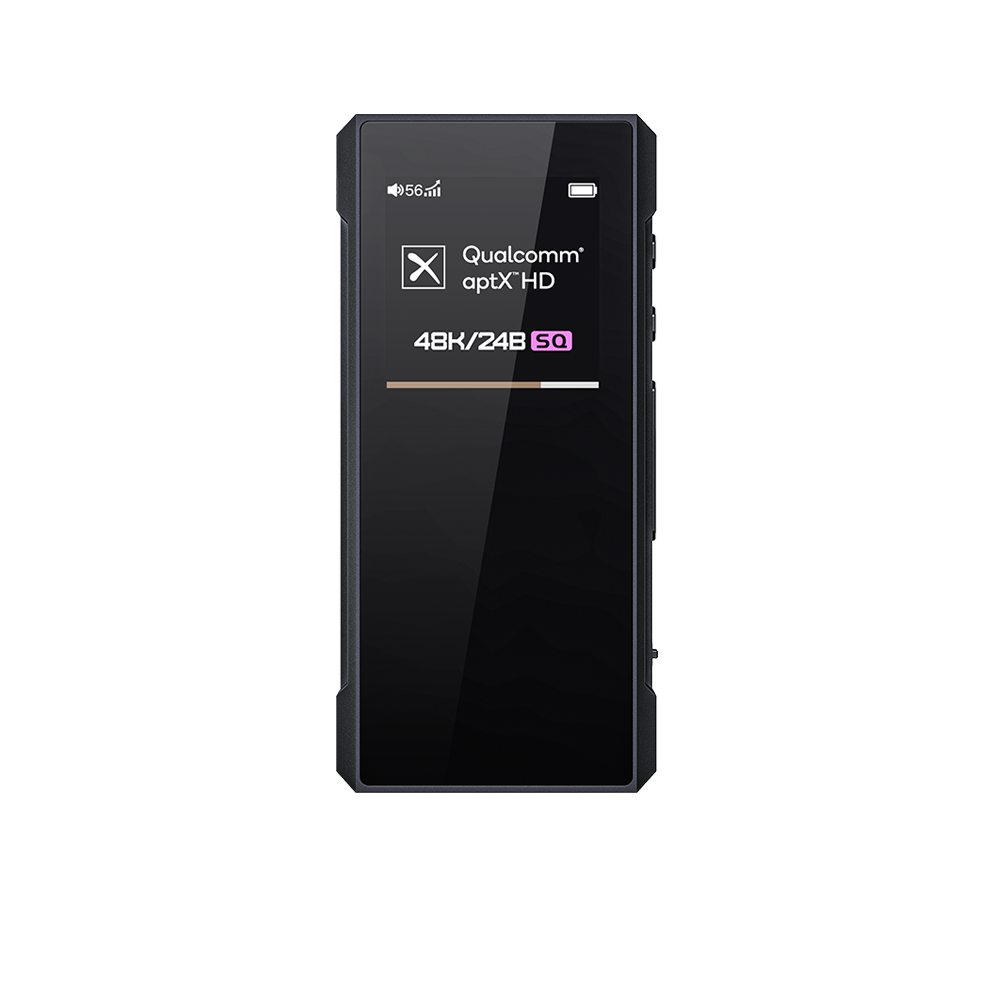
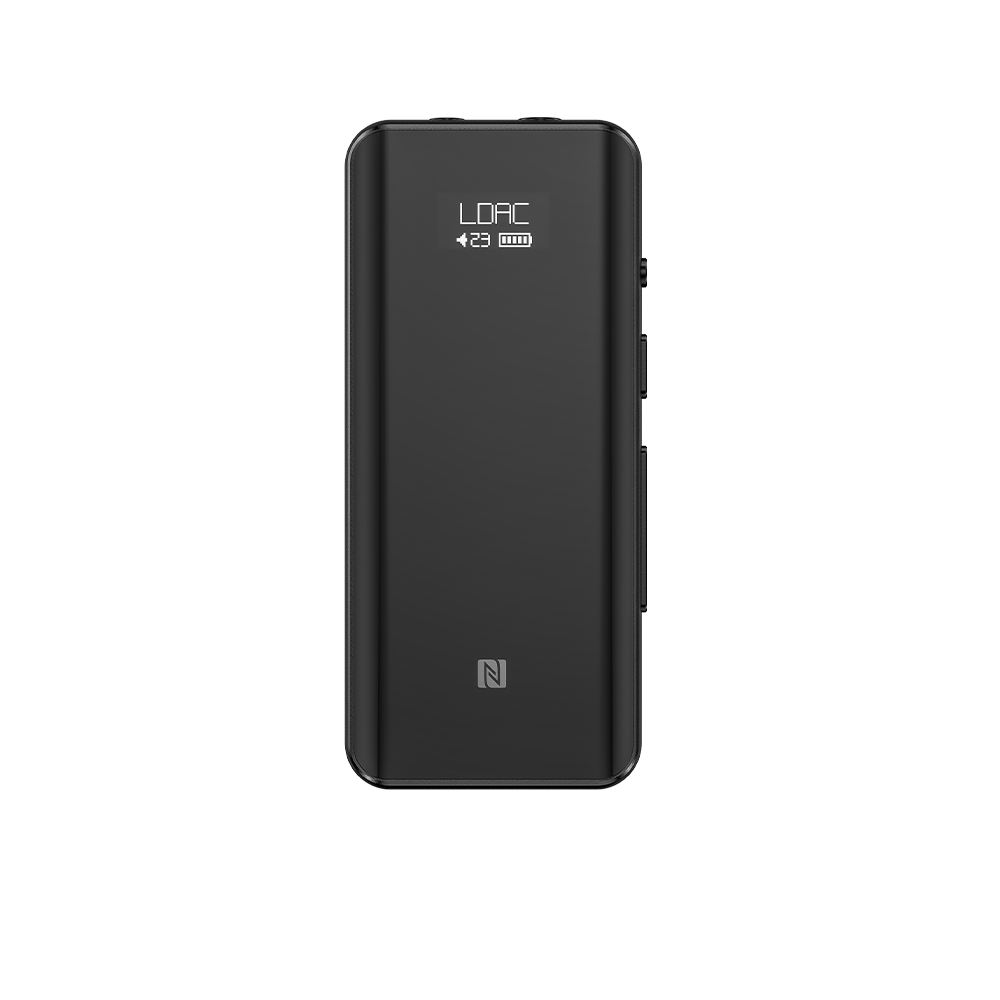
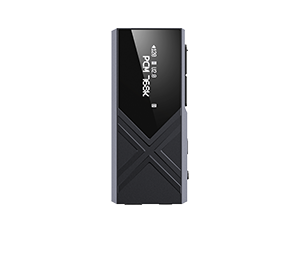
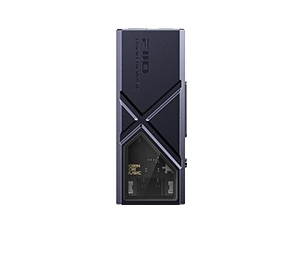
Buttons and ports explained
Quick start guide download link: Click
How to reset?
When you encounter some abnormal problems, such as freezing, you can try long pressing the power button for 10 seconds to force a reboot.
Why does the recognized name change on my computer after formatting the ECHO NANO's disk?
After formatting, the name reverts to its default. Simply restart the device, and the name will be restored.
Does ECHO NANO only support up to 256GB microSD card expansion?
Yes, due to limitations of the main control chipset, it only supports microSD cards with a maximum capacity of 256GB.
Supported audio format: NTFS not supported
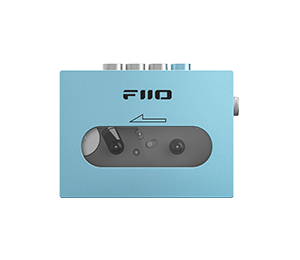
What material is the ECHO NANO body made of?
The body of the ECHO NANO is made of aluminum alloy. It is available in seven colors: Sky blue, Black, Green, Purple, Pink, White and Titanium.
2.How to Use ECHO NANO as a USB Audio Device?
1. Connect the ECHO NANO to your phone or computer using an OTG cable. ECHO NANO requires no drivers when in UAC mode.
2. Once connected to the ECHO NANO, press the Previous/Next track buttons to switch to USB DAC mode.
3. On your phone or computer, go to the audio settings and change the output device to ECHO NANO to enable the USB audio device function.
In UAC mode, ECHO NANO does not support microphone but supports in-line controls.
Decoding supports up to 48kHz.
3. What accessories are included in ECHO NANO?
ECHO NANO*1
USB cable*1
Quick start guide*1
Warranty card*1
4.ECHO NANO Battery Specifications
Battery Capacity: 360mAh
Battery Life: About 7 hours
Full Charge Time: Approximately 2 hours
Recommended Adapter: 5V, 1–2A
5.How to Update the ECHO NANO Firmware?
Download the firmware to your computer, unzip the firmware, copy the [XXX.IMG] file into the root directory of the ECHO NANO's internal storage, safely eject the ECHO NANO on the computer, and restart the ECHO NANO to automatically upgrade.
Firmware download link: Click
6.ECHO NANO Music Settings Guide
1. Volume Limit
Sets the maximum allowed volume for the ECHO NANO's output.
2. Playback Mode
Supports Single, Sequential (Order), and Shuffle modes.
Supports folder-skipping during playback.
3. EQ Selection
Supports 6 built-in EQs: Retro, Heavy Bass, Heavy Metal, Pop, Jazz, and Unique.
Supports a 5-band Custom EQ. Use the Previous/Next buttons to adjust values and the Menu button to switch between frequency bands.
4. Filter Settings
Offers 5 built-in DAC filter types: Short Delay Sharp Roll-off, Sharp Roll-off, Short Delay Slow Roll-off, Slow Roll-off, and Non-oversampling. You can select based on personal preference.
5. Gain Switch
Supports two gain levels: High and Low.
6. Channel Balance
Channel balance allows you to individually adjust the output amplitude of the left or right channel to create a specific listening condition suited to yourself. This function is unnecessary for individuals with equal hearing in both ears, as the device's left and right channel outputs are balanced by default.
The default channel balance value is 0. There are 12 adjustable levels for each channel (left and right).
7.ECHO NANO System Settings
1. Screen Settings
Screen rotation: 180-degree rotation can be enabled.
Screen timeout: Screen Always on, 15 Seconds to 30 Minutes, multiple levels adjustable.
Screen brightness: 5 levels adjustable.
2. Shutdown Settings
You can set poweroff timers and idle poweroff.
3. Knob Control
You can set it to take effect globally or only for volume.
4. UAC Charging Mode
Mobile mode: Charging and power supply are disabled. In this mode, the USB port does not charge or provide power to the device, so the device relys on battery power.
Computer mode: Charging is disabled while power supply is enabled. In this mode, the USB port does not charge the device, but provides power to the device.
Normal mode: Charging and power supply are enabled. In this mode, the USB port charges and provides power to the device.
5. Language Selection
You can switch to the desired language.
6. Product Information
You can view the product's hardware version, software version, local storage and microSD card storage.
7. Music Support
Supported audio file formats are displayed.
8. Reset All Settings
Restore all default settings. You can try this when experiencing abnormal playback issues.
9. Format Disk: Format ECHO NANO's internal memory.
10. Format TF card: Format microSD card.
8. Supported Formats of ECHO NANO
ECHO NANO uses a single CS43131 decoding chip.
Supports DSD256
Supports WAV, FLAC and APE up to 192K
Supports MP3/OGG/M4A/WMA
Supports CUE format
SACD, DTS, Aiff not supported
UAC decoding up to 48kHz
9.ECHO NANO Common Settings Instructions
How to Add Songs to My Favorites and Delete Tracks on ECHO NANO
Adding to My Favorites
Double press the Previous track button to add/remove.
How to Delete a Song
Go to File Browser, navigate to the track you want to delete, double press the Return button, and select delete to remove it.
How to Fast-Forward or Rewind on ECHO NANO
In the music playback interface or in screen-out state, long press the Previous/Next track button to fast-forward or rewind.
Why Do I hear No Difference After Switching EQ?
Please check the parameters of your audio source. The EQ function only supports audio sources up to 16bit.
Folder Song Sorting Explanation
File Browsing: Files are sorted chronologically based on their copy time.
Playlist: 1. Albums are sorted by track number.
2. Other categories are sorted by filename.
10.Common Issues with Song Playback
ECHO NANO plays a song and shows that the file format is not supported?
1.Confirm whether the format and sampling rate of the song are within the support range of ECHO NANO?
Supports DSD256, WAV, FLAC, APE supports up to 192K, supports MP3/OGG/M4A/WMA
SACD, DTS, Aiff not supported
You can check the detailed information through System Settings–Music Support list.
2. If the format is within the support range, please confirm the download channel of the song, whether it is an encrypted type of flac format downloaded through the platform. Due to the encryption operation of the platform on the songs, the downloaded songs are not standardized enough after converting the format through online conversion tools, and some songs will be unsupported. These songs can be re-converted by Foobar to support normal format.
Foobar conversion method: import the song into the playlist–right-click on the song and select Convert–convert to the desired format can be.
3. If the issue remains, please provide the certain files for us to check.
What should I do if song titles appear garbled on the ECHO NANO?
This is caused by incorrect ID3 tag encoding in the song files. Please switch the system language and then refresh/update the media library again.
Why are lyrics not displaying?
Lyrics display requires LRC files.
1. First, confirm if an LRC file corresponding to the song exists: The LRC file name must match the song file name.
2. Confirm that the LRC file is written in the correct format.
3. Confirm that the encoding format is correct. LRC files support UTF-8 or ANSI encoding, but do not support UTF-16 encoding.
How to change the encoding format:
Open the file using Notepad, select "Save As", and then choose the desired encoding format from the dropdown menu.
