




























7. How to use the BR15 R2R as a USB DAC for computer?
【Windows computer: Only support Win10 or above】
-
Install the v5.72.0 or above version FiiO DAC universal driver on the computer;
Driver download link: Click here
-
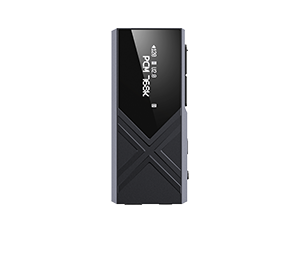
BR15 R2R input setting: After turning on the BR15 R2R, rotate the [MENU/INPUT] knob to switch to [USB] mode.
-
Connect to the corresponding output ports: XLR/LO/optical/coaxial output.
-
Connect the computer and BR15 R2R through a USB data cable, set the audio output of the computer system and the audio output of the playback software to BR15 R2R and then use it.
-
With a computer: How to play general lossless tracks and music in DSD format? Click to view
When using the BR15 R2R UAC mode to connect to a computer for music playback, occasional audio dropouts or USB recognition issues may occur:
This is because the front-panel USB ports on some computers may experience unstable signal transmission compared to the rear-panel USB ports. This instability can lead to occasional audio dropouts or USB recognition failures. If you encounter such issues, please try connecting to a USB port on the back of the computer.
【MAC computer】
-
MAC computer does not need to install the driver, just change the sound output device to BR15 RR after connection.
-
It is recommended to adjust the system volume to the maximum, and adjust the output volume of the machine by adjusting the potentiometer.
Apple computer DAC setting introduction: Click here
Notice: When BR15 R2R is connected to Mac, it can play DSD tracks up to DSD256. This is because under OSX, the DoP can only support DSD256.
【Linux computer】
The Linux system is driver-free. In theory, it can be used directly by connecting it directly. However, due to the large number of versions, it can not be guaranteed that all systems can be adapted. If it is connected, it is recommended to use another data cable or USB port to check.
