







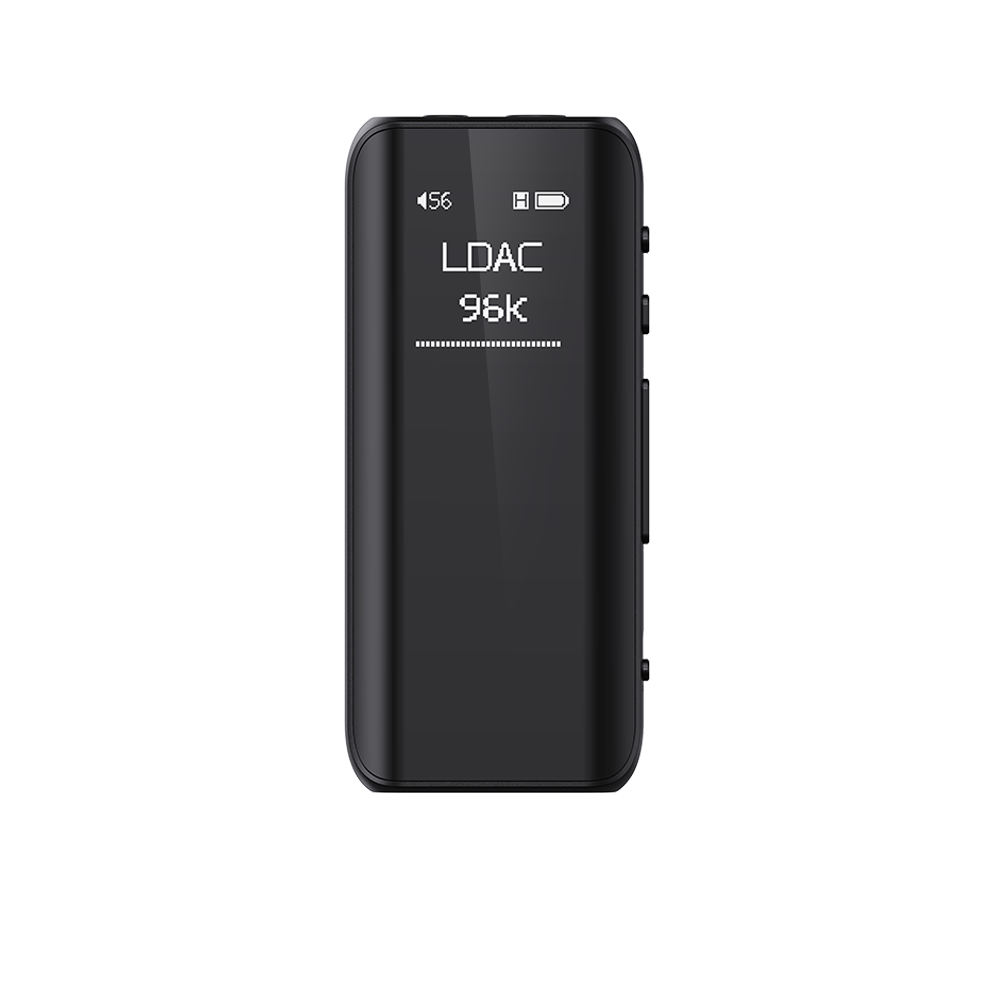





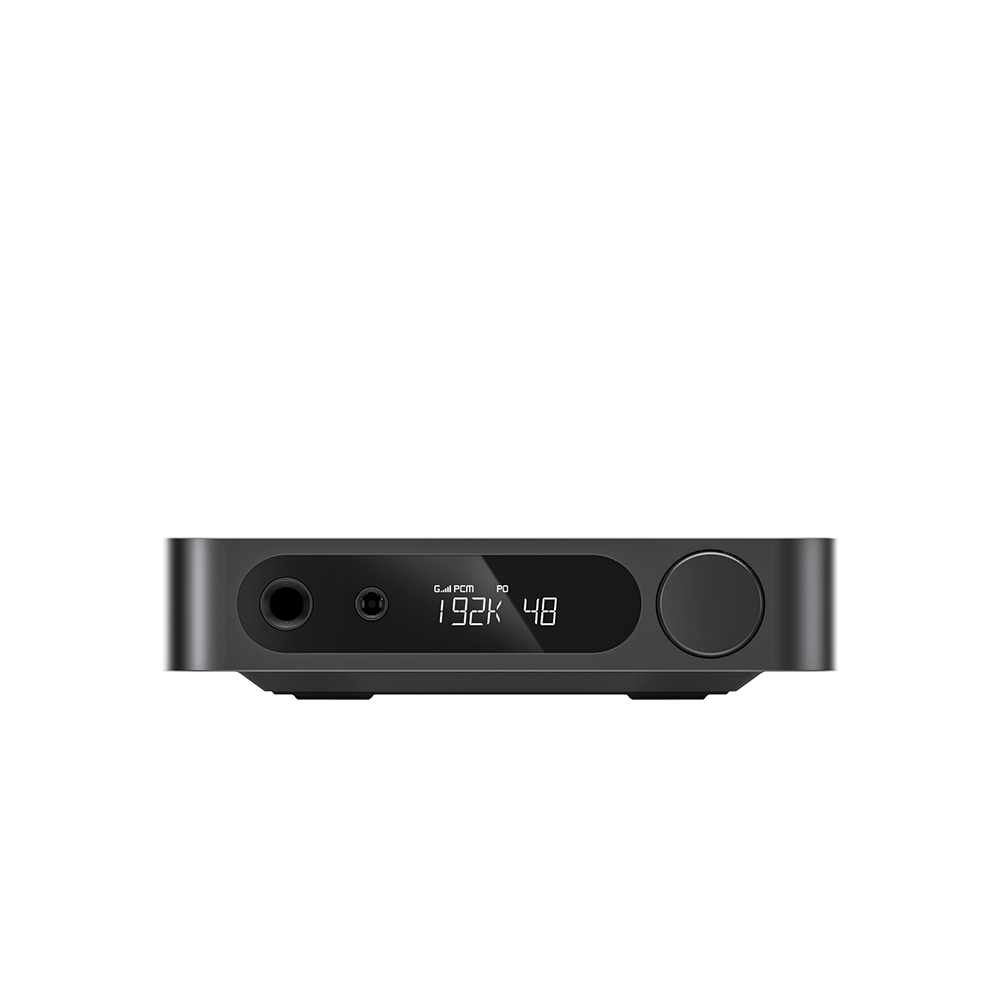


















11.How to set 10 band PEQ for BR15 R2R?
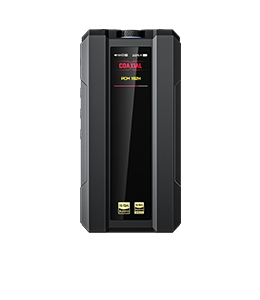
The BR15 R2R supports a 10-band global PEQ. The PEQ adjustment function is available when using Bluetooth or USB decoding mode. It can be configured via the FiiO Control APP or web control page.
1.Configuring PEQ via FiiO Control App
After installing the latest version FiiO Control App on your phone, open the app. Once the BR15 R2R connects to your phone via Bluetooth,on the My Products page, tap the “+” icon in the top-right corner to locate and connect to the BR15 R2R. Tap the Equalizer icon to configure settings. PEQ adjustments can be made via Bluetooth connection in Coaxial, Optical, USB, and Bluetooth modes.
2.Configuring PEQ via web control page in computer
When using the equalizer on a computer, connect the BR15 R2R's USB port to your computer using a USB cable. Set the BR15 R2R to USB mode and ensure EQ is enabled in the settings menu (select any option other than OFF). Access the web interface by visiting https://fiiocontrol.fiio.com/. Click “Connect” in the upper-right corner of the web interface, select BR15 R2R, and click Connect to configure EQ settings.
Note:
1.Before using web-based PEQ, ensure BR15 R2R is set to USB mode and configure EQ to any option other than OFF on the BR15 R2R unit. Setting EQ to OFF will prevent web-based PEQ connection.
2.When EQ is enabled, only tracks in 192K or lower formats are supported.
3.MQA recognition and unfolding are disabled when EQ is enabled. Disable EQ to enable normal MQA track recognition.
4.When switching between OFF and other EQ states while the BR15 R2R operates in USB mode, the USB connection will automatically disconnect and immediately reconnect. This occurs because enabling/disabling EQ runs two distinct internal programs (within XMOS firmware). Switching between them resets the XMOS, causing the device to disconnect and reconnect—this is normal behavior. If EQ is already active, switching to other presets like JAZZ or ROCK will not trigger this behavior.
5.On macOS, Safari browser control of PEQ functionality is unsupported. We recommend using Google Chrome or Opera browsers.
For more detailed PEQ usage guides: Click here
