







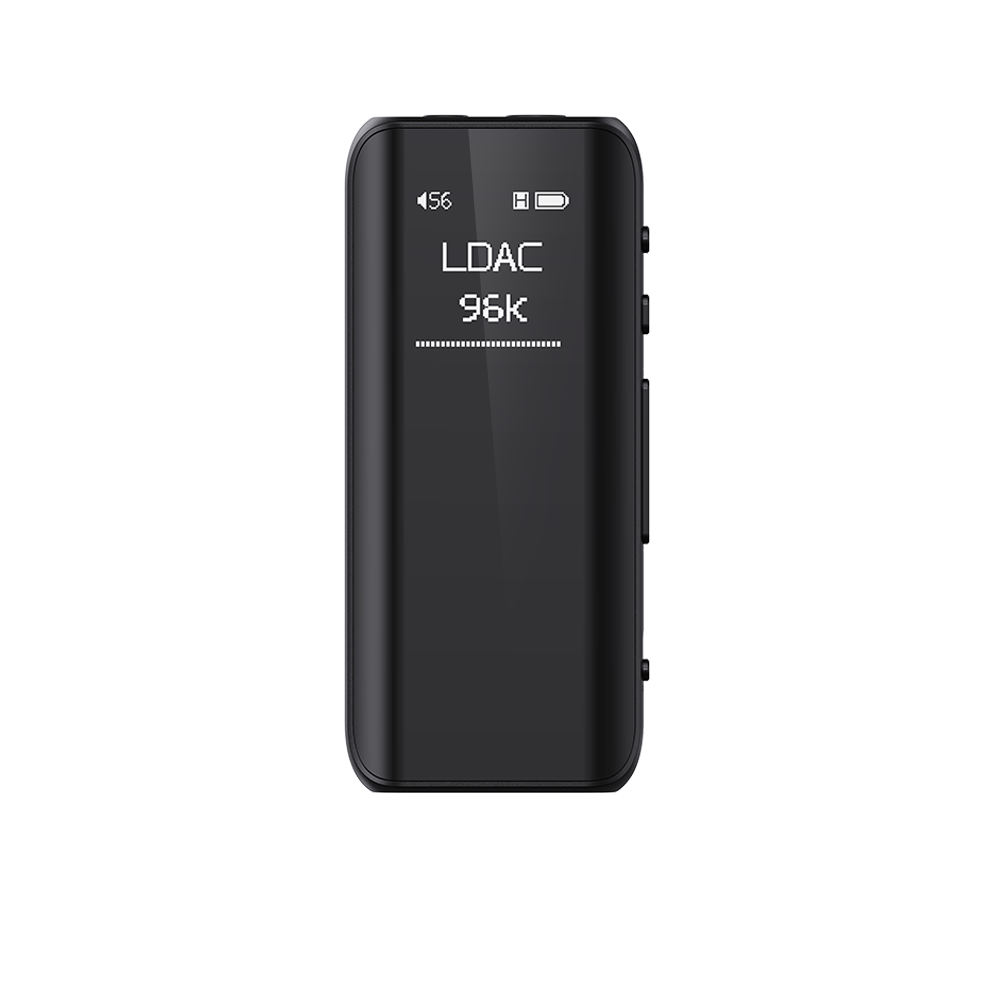






















4.How to use the D.MODE (Desktop Mode) and super high gain mode on the M33 R2R?
The definition of Desktop Mode:
When D.mode switched turned on with USB inserted, the desktop mode icon will appear on the M33 R2R screen. At this time, the M33 R2R is powered directly from the USB port, without charging the M33 R2R battery or consuming battery power.
Note:
1.If the USB power supply is insufficient, the battery will be required to supply additional power.
2.When the battery level is below 15%, inserting USB will forcibly charge the battery even it is in Desktop Mode (charging until the battery is full).
How to enable the D.MODE (Desktop Mode) on the M33 R2R?
When USB is inserted and D.MODE is displayed ON, it means the Desktop Mode is enabled.
The definition of Super High Gain mode:
Super High Gain Mode is an option for Gain. When turned on the headphone will have more power and greater voltage swing. Take the 4.4mm headphone port as example, the output power in high gain mode is 900mW@32Ω, while the output power in super high gain mode is 1100mW@32Ω.
How to enable the Super High Gain mode on the M33 R2R?
1.Make sure either USB port is connected to a fast charging adapter that supports PD3.0 or PD2.0.
2.Pull down the menu and select Super high gain in Gain option. Or select the Super high gain option from Settings - Audio - Gain.
Note:
When fast charging is plugged in and the Desktop Mode is ON, a prompt will appear asking whether to enable the Super High Gain Mode.
How to use the multifunction button?
1.In Player mode: Add to Favorites (default option), Switch song randomly, Play/Pause, Delete currently playing song, Switch equalizer, Enter USB DAC Mode, Enter Bluetooth Receiving Mode, Lock screen/Wake up, Enter Cassette mode, Open dropdown menu, Swwitch personalized sound,No function specified
2.In Bluetooth Receiving mode/USB DAC mode, the multifunction button is forcibly set to: No Function.
Note: This button only responds in Android mode/Pure Music mode, and some functions only apply to FIIO Music.
