




























13. How to Use the UAC Decoding Function on the DM15 R2R?

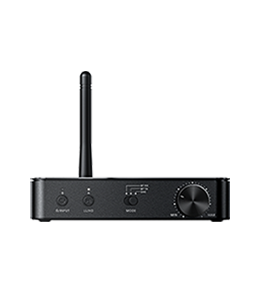
UAC decoding mode supports 3.5mm/4.4mm analog output, Bluetooth transmission, as well as coaxial and optical output functions.
Most computers, mobile phones, PS5 (UAC 1.0), Switch (UAC 1.0), and other devices on the market support these functions in this mode.
In UAC mode, if you wish to enable the D.MODE function for higher power output, please connect the [POWER IN] port to an external power source.
1. How to Connect the DM15 R2R as a UAC Decoder to a Mobile Phone?
1.Push the input selector switch on the DM15 R2R to USB IN mode.
2.Use an OTG cable with the corresponding interface (e.g., Type‑C to Type‑C) to connect the [USB IN] port on the rear panel of the DM15 to the USB port of your mobile phone.
3.Push the output selector switch on the DM15 R2R to the corresponding output mode based on your connection: PRE OUT / BT OUT / SPDIF OUT.
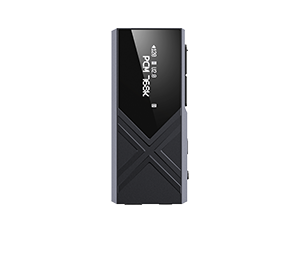
4.When successfully recognized, the screen will display the track format and sampling rate during playback.
[Android Phones]
Most Android phones can be used directly after connection. If no sound is heard, checking the following areas usually resolves the issue:
1.Audio player app settings: Enable USB audio output if available. For some devices, sound may only be heard when USB output is disabled.
2.Enable USB debugging in Developer Options:
Turn on "Developer Options" on your phone, then enable "USB Debugging" or "OTG" function.
3.Verify OTG compatibility of the cable: Ensure the cable supports OTG and check if it has a specific orientation.
4.Reconfirm the DM15 R2R settings: Make sure it is set to USB IN mode and the output mode matches the connected headphones/speakers.
5.Device compatibility note: Due to the lack of unified USB audio standards across Android brands, FiiO cannot guarantee full compatibility. If issues persist after following the steps above, try connecting to another phone or a computer to rule out potential hardware faults (rare). If the problem also occurs with a computer, please contact our customer service for further assistance.
[iPhone / iPad]
Apple devices generally require no additional setup – they should work once connected and recognized.
Connect your iPhone/iPad/iPod to the DM15 R2R using an OTG‑capable adapter cable, then play music to enjoy high‑quality audio.
1.System requirements: Only iOS devices running iOS 10.0.2 or above are supported. Earlier versions cannot be supported due to Apple system limitations.
2.Volume control: When decoding via an iOS device, adjusting the iOS device’s volume will not affect the output. Volume must be adjusted directly on the DM15 R2R.
[HarmonyOS]
Some HarmonyOS phones require disabling USB exclusive mode in the audio app for compatibility.
Why is the DM15 R2R Not Recognized as a Phone Sound Card?
1.Ensure that the data cable used to connect the DM15 supports data transfer (not only charging).
2.If you are using the device while charging, follow this connection sequence: First connect the DM15 to your phone, then connect the USB charging cable. This helps ensure proper recognition by the phone/player.
Note: This limitation does not apply when using a computer as the audio source.
2. How to Connect the DM15 R2R as a UAC Decoder to a Computer?
1.Push the input selector switch on the DM15 R2R to USB IN mode.
2.Push the output selector switch on the DM15 R2R to the corresponding output mode based on your connection: PRE OUT / BT OUT / SPDIF OUT.
3.Use the included USB A‑to‑C data cable to connect the computer to the [USB IN] port on the rear panel of the DM15 R2R.
[Windows Computers]
1.Install the FiiO Universal DAC Driver – version v5.72.3 or higher. Driver download link::点击 Note: Only supports Windows 10 and above. For Windows versions prior to 10, you can use the driverless USB 1.0 mode.
2.Computer Setup: For instructions on playing standard lossless and DSD format music, please refer to: 点击查看
[Mac Computers]
1.No driver installation required for Mac. Simply select the corresponding sound output device (DM15 R2R) in system settings.
2.It is recommended to set the system volume to maximum and adjust the output volume using the volume knob on the DM15 R2R.
3.For details on DAC settings for Mac computers, please refer to:点击
[Linux Computers]
Linux systems are generally driver-free. In theory, the device should work when connected directly. However, due to the wide variety of Linux distributions, compatibility with all systems cannot be guaranteed.
If the device is not recognized after connection, it is recommended to try different data cables or USB ports. If it remains undetected, the specific Linux version or configuration may not be supported.
