







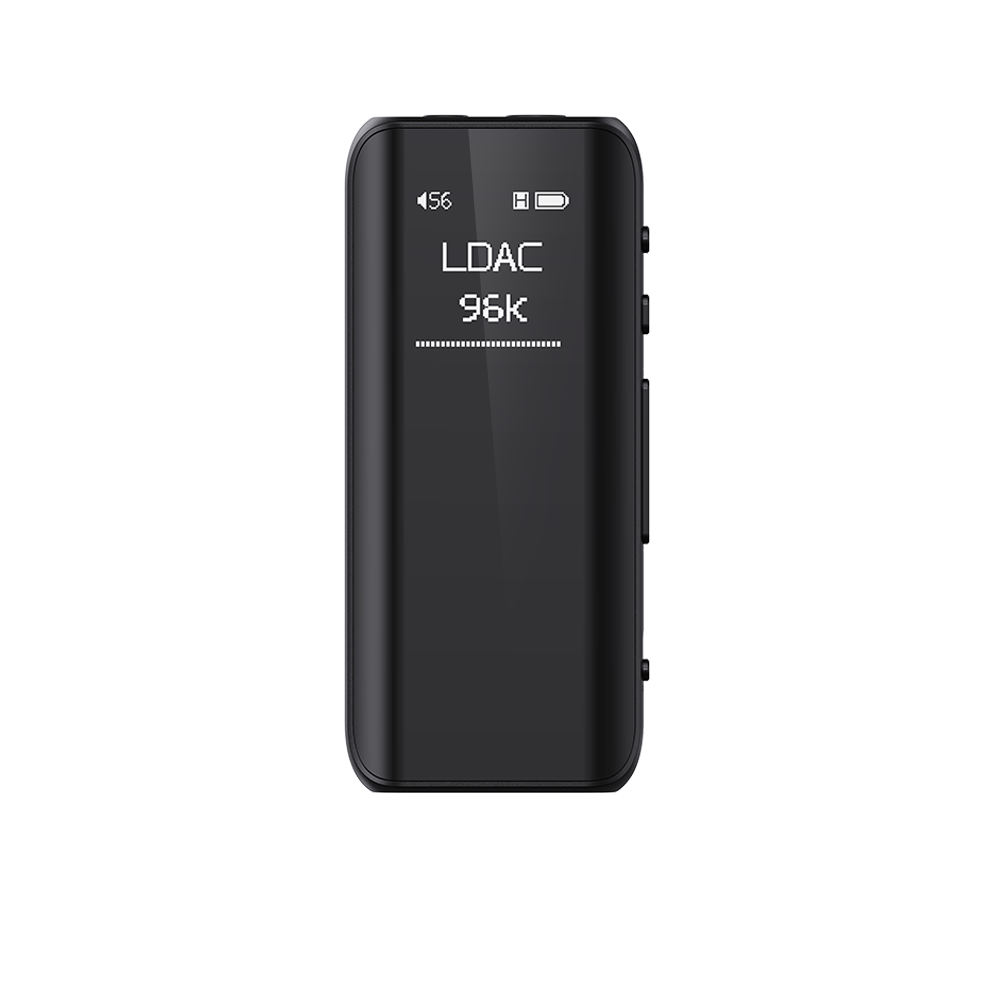



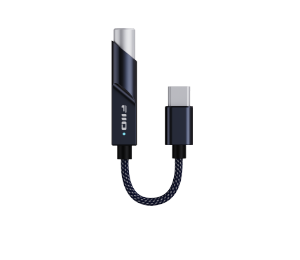



















1. How to upgrade the firmware for FG3?
1. Open the webpage https://fiiocontrol.fiio.com/ using a browser that supports the Web HID API, such as Chrome, Edge, Opera, etc.
2. Connect the FG3 to your computer (Windows/Mac) via a USB port.
3. Click "Connect Device", select "USB" and click "Connect". In the pop-up window, select "FIIO FG3" and click "Connect".


4. After a successful connection, "FIIO FG3" will appear in the upper right corner. Then click "Configuration" at the top, and under the "Device Maintenance" section on the left, click the "↑" (up arrow) for Online Firmware Update.
5. Check for updates. The current firmware version and the latest available firmware version will be displayed.


6. Click "Device Firmware Update" to start the upgrade. A pop-up message saying "Please connect COM" will appear. Click "Confirm". Then a prompt window will pop up in the upper left corner, asking you to connect to "CDC HID FS 2.0". Select it and click "Connect". The firmware will then automatically begin the upgrade process.


7. The firmware upgrade is now in progress. Please wait for the progress bar to reach 100%. Once the upgrade is complete, a "Upgrade Successful" message will appear at the top of the page.
If the upgrade fails during the process, a corresponding error message will appear. Simply follow the upgrade steps again. Please note that the selection option will now be "CDC HID FS 2.0".


