





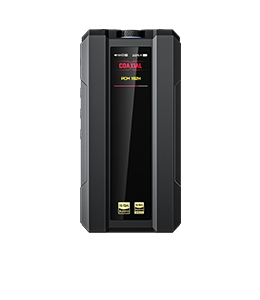









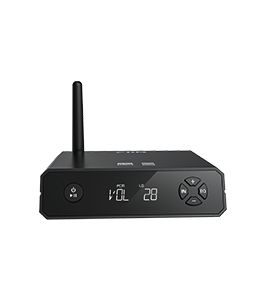















7. How to set up Wi-Fi for the AIR AMP using a smartphone?
The AIR AMP supports both wireless and wired network connections, with wired network taking priority.
A wired network does not require any setup. Simply plug an Ethernet cable from your local network into the AIR AMP's LAN port, and it will automatically join the network with other devices under the same router.
Wireless Network Setup Procedure:
-
Press and hold the menu knob to enter the AIR AMP's settings menu.
-
Rotate the knob until "NETWORK" is displayed, then press the knob. Select "Y" to enter Wi-Fi setup mode. If you do not wish to proceed, select "N" to exit.
-
On your smartphone (or a Wi-Fi-enabled player), go to Wi-Fi Settings and search for and connect to the "FiiO AIR AMP" hotspot. This hotspot does not provide internet access.
Note: Your phone may prompt you to switch to cellular data. Please choose to stay connected to the Wi-Fi network.
-
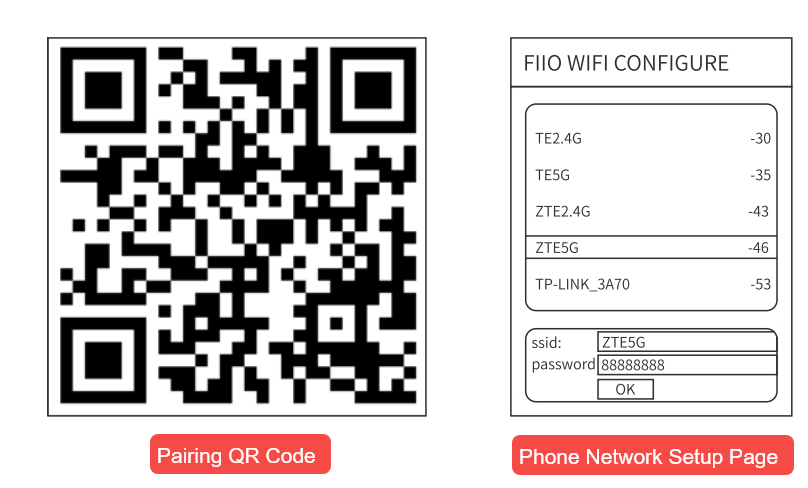
Setup Method 1: Open your phone's browser and enter 192.168.237.1, or scan the QR code on the bottom of the AIR AMP. Your phone will then display a list of available Wi-Fi hotspots. Select the Wi-Fi network you wish to connect to, enter the password, and tap confirm. The AIR AMP will then complete the Wi-Fi setup.
Setup Method 2: Use your phone's camera or the WeChat app to scan the QR code on the bottom of the AIR AMP, then tap to identify the QR code and follow the on-screen instructions.
Can wired and wireless networks be used simultaneously?
Both wired and wireless networks can be configured, but they cannot be active at the same time. Wired network takes priority. When an Ethernet cable is connected, the system will automatically switch to the wired network. When the Ethernet cable is unplugged, it will automatically switch back to the Wi-Fi network. If you configure Wi-Fi while the Ethernet cable is plugged in, the system will automatically switch back to the wired network after the Wi-Fi setup is complete.
How to set up Wi-Fi using the FiiO Control App
If Wi-Fi setup fails using the browser method (entering 192.168.237.1), you can also use the FiiO Control App to complete Wi-Fi setup for the AIR AMP.
Android App Setup
-
Download and install the latest version of the FiiO Control App from your phone's app store or the FiiO official website. When opening the app for the first time, if any network or location permission requests appear, please grant them.
-
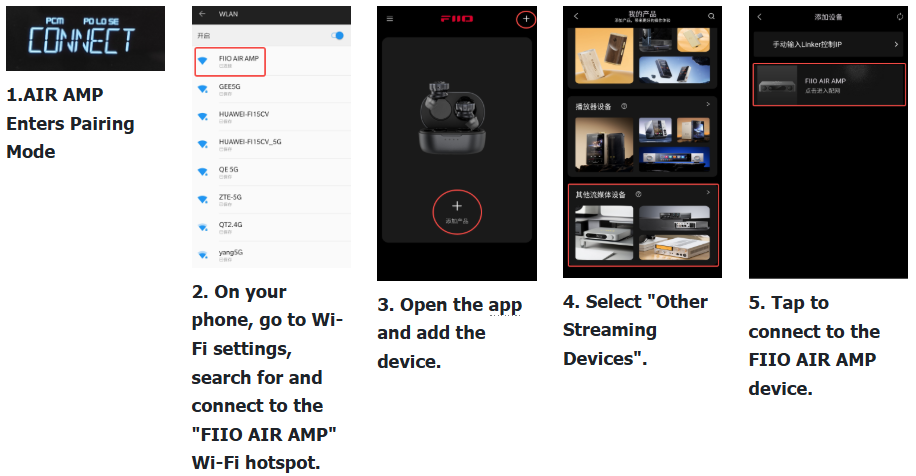
From the AIR AMP's main interface, short-press the menu knob and rotate until "NETWORK" is displayed. Short-press the knob to enter the "Y/N" menu. Select "Y" and short-press the knob to confirm. The display will show "CONNECT" and both knob LEDs will flash.
-
On your phone, go to system settings, open Wi-Fi, search for and connect to the Wi-Fi hotspot named "FIIO AIR AMP". Once connected, open the FiiO Control App.
-
In the app, select Add Device → Other Streaming Devices.
-
On the Add Device page, wait for the app to discover the device, then tap Connect next to "FIIO AIR AMP".
-
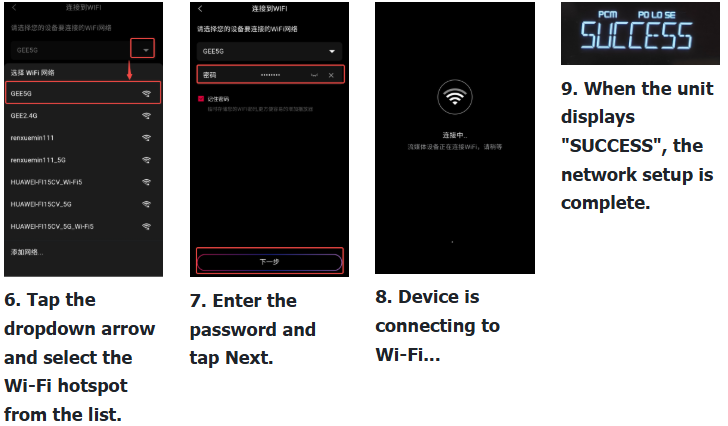
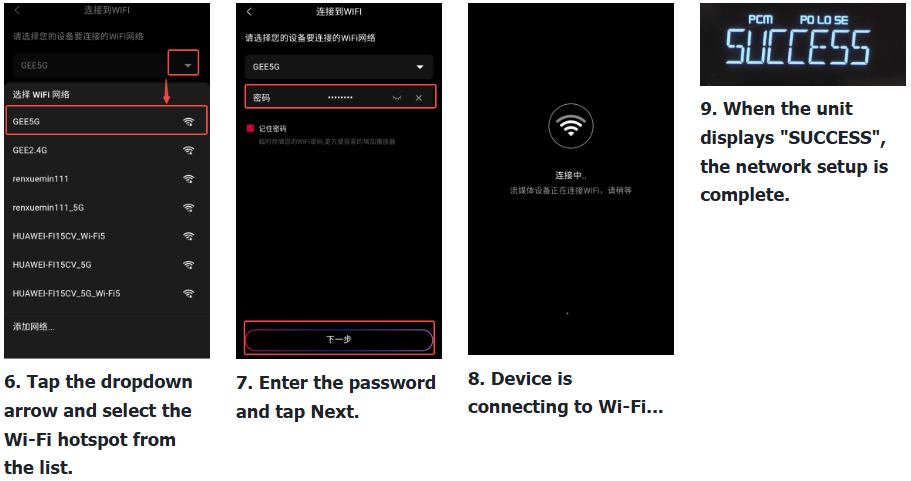
Enter the Wi-Fi connection interface. Tap the dropdown arrow to open the Wi-Fi list and select the Wi-Fi hotspot you want the AIR AMP to connect to.
-
Enter the Wi-Fi password and tap Next.
-
The device will begin connecting to the Wi-Fi network.
-
Once the Wi-Fi connection is successful, the AIR AMP display will show "SUCCESS". The setup is now complete, and you may manually exit the app.
iOS App Network Pairing
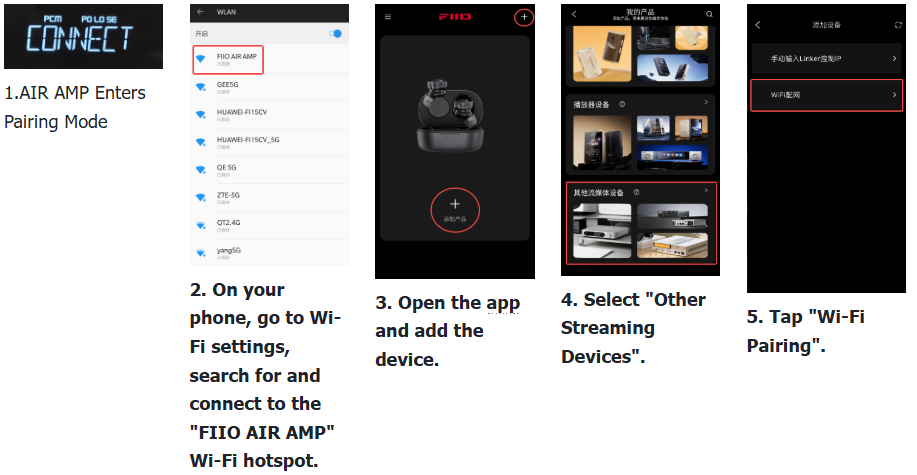
The process is essentially the same as on Android.
1. After setting the AIR AMP to pairing mode, connect your phone to the "FIIO AIR AMP" Wi-Fi hotspot, open the app, and add the device. On the Add Device page, select Wi-Fi Pairing. You will then be redirected to the Wi-Fi connection interface. Select the desired Wi-Fi network, enter the password, and tap Next. The AIR AMP will then begin pairing. When pairing is complete, the AIR AMP will display "SUCCESS".
APP Pairing Notes
-
Make sure the APP is the latest version; older versions do not have the pairing function.
-
Check that your phone is connected to the FIIO AIR AMP Wi-Fi hotspot; connecting to other Wi-Fi networks will interfere with the pairing process.
-
If APP pairing consistently fails, try using the browser-based pairing method by entering 192.168.237.1 in your phone's browser.
