




























9. How to Connect the AIR AMP to the FiiO Control App
-
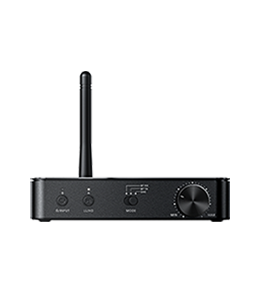
Confirm that the AIR AMP has been paired to the network and is on the same Wi-Fi network as your phone. AIR AMP pairing tutorial: Click here.
-
Download the FiiO Control App on your phone: Click here. When running the app for the first time, if a permission request appears, please tap "Allow" to grant the necessary permissions.
Tap the "+" icon on the app to enter the Add Device interface, then tap the "Other Streaming Devices" category icon. The app will switch to the device search interface. Tap the refresh icon in the upper right corner on this interface, and it will search for AIR AMP devices on the same local network. Tap on the device to complete the connection.
What to do if the app cannot connect to the device?
-
If the AIR AMP device is not found in the app, please check that both the AIR AMP and your phone are on the same local network. Verify that the Wi-Fi hotspot connected to your phone and the AIR AMP are the same.
-
If the FiiO Control App still cannot find the device, you can manually enter the AIR AMP's IP address in the app to connect. This IP address can be viewed on the AIR AMP after it is connected to the network by entering the settings menu and navigating to "IP". For example, if the IP display is 10.0.0.137, go to the device search page in the app, tap "Enter Linker Control IP Manually", enter 10.0.0.137, and tap confirm. The manual connection to the app will then be completed, as shown in the image.

